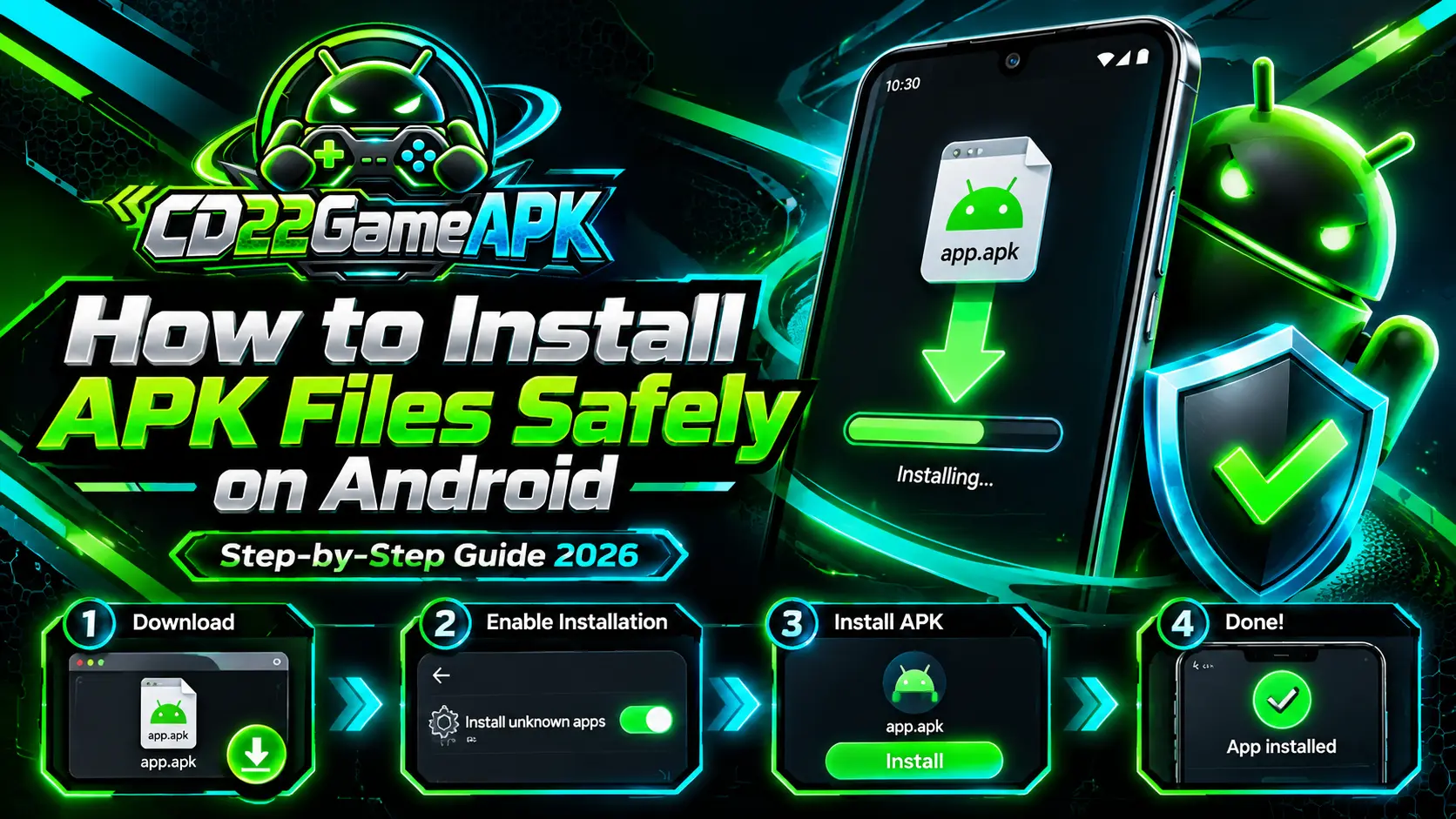
An APK is an installation package for Android. You can use one when the genuine developer offers a direct download, but you should check the source and device requirements before opening the file. This guide covers a standard APK on modern Android phones. Menu names can differ on Samsung, Xiaomi, Pixel, and other devices.
Before you install
- Confirm the publisher and download from a source you trust.
- Read the minimum Android version and any device requirements.
- Keep Play Protect enabled and scan the package before installation.
- Make sure your phone has room for the APK, the installed game, and any extra game data.
- If you are updating a game, check its cloud-save or backup options first.
Our APK safety guide explains source, scan, and permission checks. A clean scan is useful but does not guarantee safety.
Step 1: Download the correct file
Use the developer’s official download page where available. Confirm that the file matches the game and device you intend to use. Avoid unrelated advertisements and download managers that appear after pressing a button.
Wait until the download finishes. If your browser reports an interrupted transfer, do not try to install that partial file. A normal APK usually ends in .apk. An .aab file is a publishing format, and an .apks or .xapk package may contain multiple parts. Do not rename one of these formats to .apk; renaming does not convert it.
Step 2: Find the APK
Open your browser’s downloads list or a trusted file manager and look in Downloads. Compare the file name with the release you chose. If several versions are present, use the intended release rather than guessing from the most recent file name.
Step 3: Allow installation from the trusted source
When you open an APK, Android may ask whether the source app can install unknown apps. On many phones, the setting is under Settings → Apps → Special app access → Install unknown apps. The exact path varies.
This permission belongs to the app opening the package, such as your browser or file manager. Only allow a trusted source for this installation. It is separate from Play Protect: do not disable security scanning or ignore a harmful-app block.
Step 4: Read the installer and install
Check the app name shown by Android. If it is unexpected, cancel. Follow the installation prompt only after your source and safety checks are complete. Allow recommended scans and read every warning.
If the package is blocked as harmful, stop and contact the developer. If the installer reports a technical error, note the exact message and follow our installation troubleshooting steps. Repeatedly opening the same broken file rarely solves the underlying problem.
Step 5: Open the game carefully
After installation, open the game and review each permission request. Grant only what the feature needs. For example, voice chat can explain microphone access, while a simple offline game should not need your SMS messages.
Some games download additional resources on first launch. Use a stable connection and check the publisher’s storage information. Do not install a second unknown app merely because a pop-up claims that it is required.
Step 6: Turn source permission off
Return to Install unknown apps and turn off permission for the browser or file manager when you no longer need it. Keep your Android updates and Play Protect active. Delete the downloaded installer if you do not need to keep it; deleting the APK from Downloads normally does not uninstall the game.
Updating an existing game
Use an update from the same genuine publisher and distribution channel. A different signing certificate or package name can prevent a normal update. Do not uninstall the current game just to get past an update error: local progress may disappear. First confirm that saves are synced and recoverable. See our game update guide.
Frequently asked questions
Why does Android say “App not installed”?
Possible causes include an incomplete file, insufficient space, unsupported Android version, a missing split package, or a conflict with the installed app. The exact message matters; use the troubleshooting guide before changing your device.
Can I install an APK on an iPhone?
No. APK is an Android package format. An iPhone uses a different app system.
Will installation keep my existing game progress?
A compatible update usually keeps local app data, but that is not a guarantee. Back up or sync your progress first. Some games do not support a complete backup.
Should I root my phone to install a game?
Root access is not part of normal APK installation. Do not change your device’s security model to make an unknown package install.
Next steps
Use safe download checks before installing, and browse Android guides for updates and version checks.