Are you seeing a CR777 APK not installing error on your Android phone? Sometimes an APK download finishes successfully, but Android displays messages such as “App not installed,” “There was a problem parsing the package,” or “App not compatible.”
These messages can have several causes. The downloaded file might be incomplete, the app may not support your Android version, or an existing installation could conflict with the new package.
However, an installation error does not automatically mean the APK is safe. Before troubleshooting CR777 Game, it is important to confirm the app’s source and understand the warning displayed by your phone.
This guide explains nine safe ways to investigate CR777 APK installation problems without disabling essential Android security features.
Why Is CR777 APK Not Installing on Android?
Android checks several details before installing an application. A file must have the correct format, compatible software requirements, and valid package information.
The most common reasons for an APK installation failure include:
- Incomplete or damaged APK downloads
- Unsupported Android versions
- Insufficient available storage
- Conflicting installed applications
- Different APK signing certificates
- Missing split APK components
- Incorrect file formats
- Installer permission restrictions
- Google Play Protect security warnings
These are general Android installation causes. They have not been confirmed through independent testing of a particular CR777 APK.
For background information about the platform, read our CR777 Game APK review.
1. Identify the Exact CR777 Installation Error
Before changing any phone settings, read the error message carefully.
Different messages point toward different problems.
| Android error | Possible explanation |
|---|---|
| App not installed | Package conflict, compatibility or file issue |
| Problem parsing the package | Damaged or unsupported APK |
| App not compatible | Android or device requirements |
| Update incompatible | Different signing certificate or package |
| Not enough storage | Insufficient available space |
| Play Protect warning | Potential security concern |
Write down the exact message.
If possible, take a screenshot without exposing private information.
Knowing the original error makes troubleshooting easier and prevents unnecessary changes to Android settings.
2. Verify the CR777 APK Download Source
One common problem with third-party Android applications is uncertainty about the original publisher.
Several websites may use similar application names, logos and download descriptions.
A file named CR777-latest.apk does not prove that it belongs to the original developer.
Before downloading another installer:
- Identify the software publisher.
- Check whether the developer provides an official distribution channel.
- Compare the application’s package name.
- Review any available security information.
- Avoid websites that repeatedly redirect visitors to unrelated download pages.
If the developer cannot be identified, do not install an unfamiliar replacement APK.
For more details, see our CR777 APK security and privacy review.
3. Check Whether the APK Download Is Complete
An incomplete APK file may produce a parsing error or fail during installation.
This problem can occur when a connection is interrupted, a server delivers the wrong file, or a download stops before all data arrives.
Open your phone’s Downloads folder and inspect the downloaded file.
Check whether:
- The file has the expected APK extension.
- Its file size matches the developer’s documented release.
- The download completed without an error.
- The file came from a verified source.
If a publisher offers a verified checksum, it can help identify whether a downloaded file matches that release.
Do not assume that renaming a damaged ZIP file to APK will repair it.
Also, avoid downloading several unrelated CR777 installers just to find one that Android accepts. A successful installation is not proof of authenticity.
4. Check Your Android Version and Device Compatibility
Not every Android application supports every smartphone.
Developers can set minimum Android requirements and may build an application for particular processor architectures or device features.
To check your Android version:
- Open Settings.
- Select About phone.
- Find Android version.
- Compare it with the verified application’s requirements.
Menu names may vary between Samsung, Xiaomi, Redmi, Oppo, Vivo and other Android devices.
An old Android version may prevent installation of a newer application.
Similarly, some older applications may face restrictions on newer Android versions.
The correct solution is to obtain a supported release from a verified publisher—not to disable system protection.
Important: The minimum Android version required by an authentic CR777 release has not been independently confirmed in this guide.
5. Make Sure Your Phone Has Enough Storage
An APK file needs more space during installation than its download size alone might suggest.
Android may need additional temporary storage to unpack and install the application.
If your phone has very little free space, installation can fail.
Try these steps:
- Open Settings.
- Select Storage.
- Check the available storage.
- Delete unnecessary temporary files or unused downloads.
- Restart the device if appropriate.
- Try the installation again only if the APK source is trusted.
Avoid deleting important photos, documents or application data without a backup.
There is no single storage amount guaranteed to solve every APK installation problem. Requirements depend on the application and device.
6. Understand APK and Split APK File Differences
Not every Android application is distributed as one ordinary APK file.
Some applications use multiple APK components. These may include a base package and device-specific configuration files.
If only one component is available, Android may reject the installation because other required components are missing.
You might encounter file formats such as:
.apk— a standard Android package.apks— an archive that may contain multiple APK packages.xapk— a third-party package format that may include additional resources
These formats are not interchangeable.
Do not rename one format to another and assume it will install correctly.
Only use the installation method documented by a trustworthy developer. Avoid unfamiliar installer tools that request excessive permissions.
There is currently insufficient verified information to establish whether a particular CR777 distribution uses a single APK or split packages.
7. Check for an Existing App or Signing Conflict
Android uses application identifiers and signing certificates to determine whether a new file is compatible with an installed application.
An update normally needs to match the identity and signing requirements of the existing application.
If the signing identity differs, Android may reject the update.
This can happen even when two APK files display the same app name.
Before making changes:
- Open Settings and select Apps.
- Look for an existing installation.
- Check the displayed version.
- Compare it with the verified publisher’s information.
- Confirm whether the new file is a genuine update.
Read our guide to checking APK versions and package names for additional information.
Do not uninstall the existing application simply to force an unfamiliar APK to install.
Uninstalling can remove local files, saved settings and application data.
If an update requires an uninstall, confirm backups and application ownership first.
8. Understand Android Installer Permissions
Android controls which applications can request installation of packages from outside trusted app stores.
Depending on the Android version, this permission may be managed separately for the browser or file manager.
However, an installer-permission message is different from a security warning.
If Android displays an installer permission error, confirm the source and determine whether installation is appropriate.
Only grant installation permission to a source you genuinely trust and only when needed.
Once finished, review that permission again.
Do not disable device security policies, remove Advanced Protection, or grant unusual privileges to an unknown installer.
If a source cannot be verified, the safer option is to stop.
9. Do Not Ignore Google Play Protect Warnings
Google Play Protect checks applications for potentially harmful behavior, including applications distributed outside Google Play.
Its warnings should not be treated as ordinary technical errors.
For example, a message asking to scan an unfamiliar application is different from a warning identifying an application as harmful.
If Play Protect flags an APK:
- Read the exact warning.
- Do not disable Play Protect.
- Do not follow instructions from unknown websites to bypass the warning.
- Verify the publisher and package identity.
- Cancel installation if the application is identified as harmful.
An app that installs successfully is not necessarily safe. Security also depends on how it handles personal information and network activity.
Read our Google Play Protect troubleshooting guide for more information.
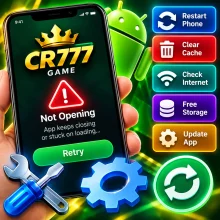
What if CR777 Installs but Does Not Open?
Installation and application startup are separate processes.
An app may install correctly but crash when launched.
Possible causes include application bugs, missing dependencies, unsupported hardware and temporary software problems.
If a verified application crashes:
- Restart your phone.
- Check whether a supported update exists.
- Review available storage.
- Check for an Android system update.
- Record the error message.
- Contact the verified developer.
Avoid resetting your phone or installing unknown replacement files as an initial troubleshooting step.
If the software publisher remains unverified, do not provide personal account information while seeking assistance.
CR777 APK Safety and Real-Money Gaming Risks
Some online services associated with the CR777 name advertise casino-style gaming, promotional bonuses or financial transactions.
Those claims are separate from the technical installation process.
Even if an APK installs normally, that does not demonstrate that its operator is financially trustworthy, legally authorized or secure.
Users should be especially careful about applications that request financial details, identity documents, one-time passwords or unnecessary phone permissions.
A successful APK installation cannot guarantee payouts, earnings or account protection.
Check applicable laws and age restrictions before considering any service involving real-money gambling.
Frequently Asked Questions
Why does CR777 APK show “App not installed”?
The message can indicate incompatible software, a damaged APK, insufficient storage or a package-signing conflict. Check the complete error before selecting a solution.
Can I install CR777 APK on any Android phone?
Compatibility has not been confirmed for every Android device. It depends on the actual application’s minimum Android requirements, architecture and supported features.
Does clearing storage fix CR777 installation errors?
Freeing storage may help when insufficient space causes the failure. It will not repair invalid packages, signing conflicts or security problems.
Is it safe to turn off Play Protect to install CR777?
No. Disabling Play Protect removes an important layer of security without establishing that the application is trustworthy.
Why does a CR777 APK update fail?
A failed update may involve incompatible package identifiers, mismatched signing certificates, missing package components or unsupported versions. Verify the developer and backup options before considering reinstalling.
Final Thoughts
A CR777 APK installation failure can have several technical explanations, including file corruption, device incompatibility, package conflicts and insufficient storage.
However, not every installation problem should be solved by forcing the application onto a phone.
The most reliable troubleshooting approach begins with the exact error message, a verified publisher and a compatible installation file.
If the application’s identity or safety cannot be established, do not install it.
CD22GameAPK provides independent educational information and does not certify the safety, ownership or financial reliability of any unverified CR777 application.


5 comments